 MoviePro
Direct the shot from across the room.
Mount one iPhone as the camera, then monitor and control it from another iPhone, an iPad, or a compatible Apple-silicon Mac. Remote mode gives solo operators control without touching the rig or adding a crew.
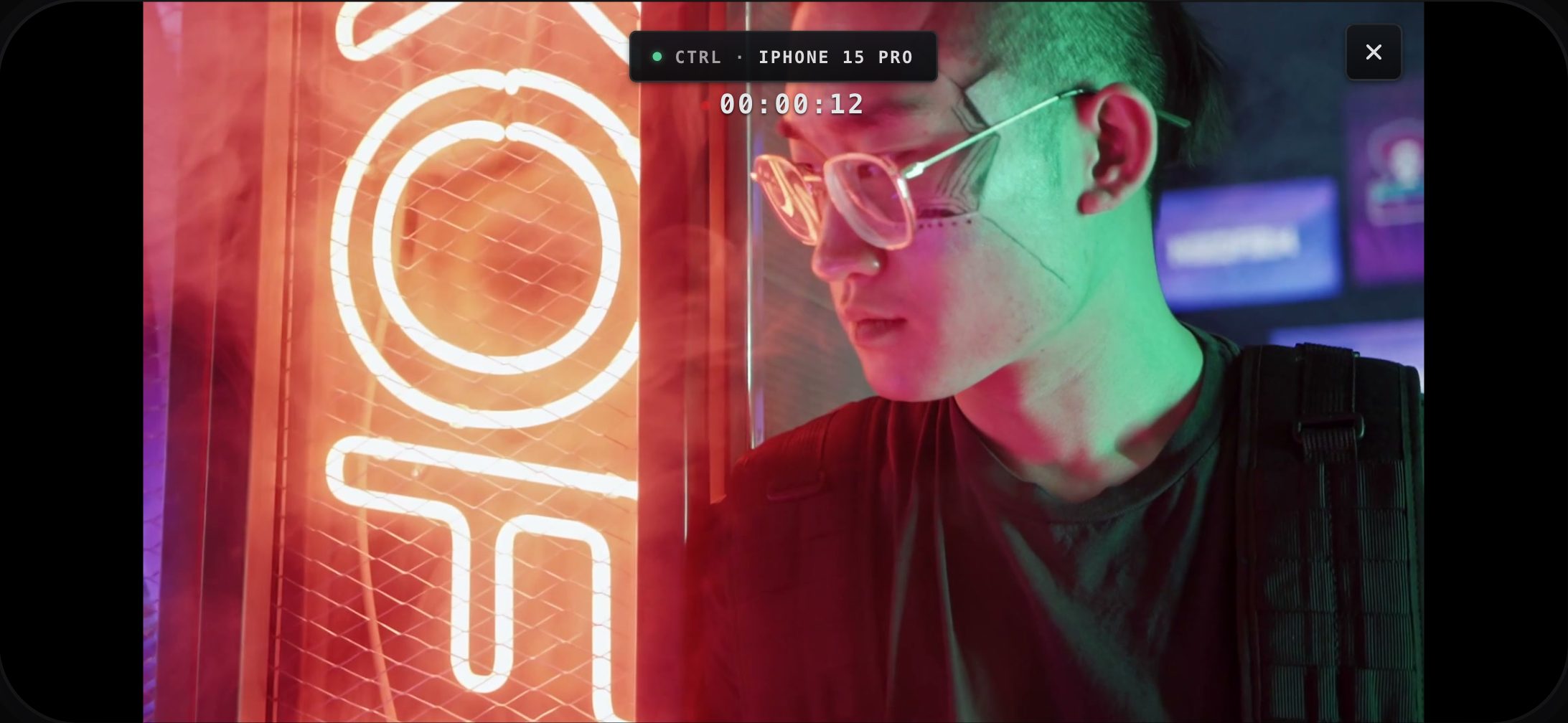
Run the take without touching the camera.
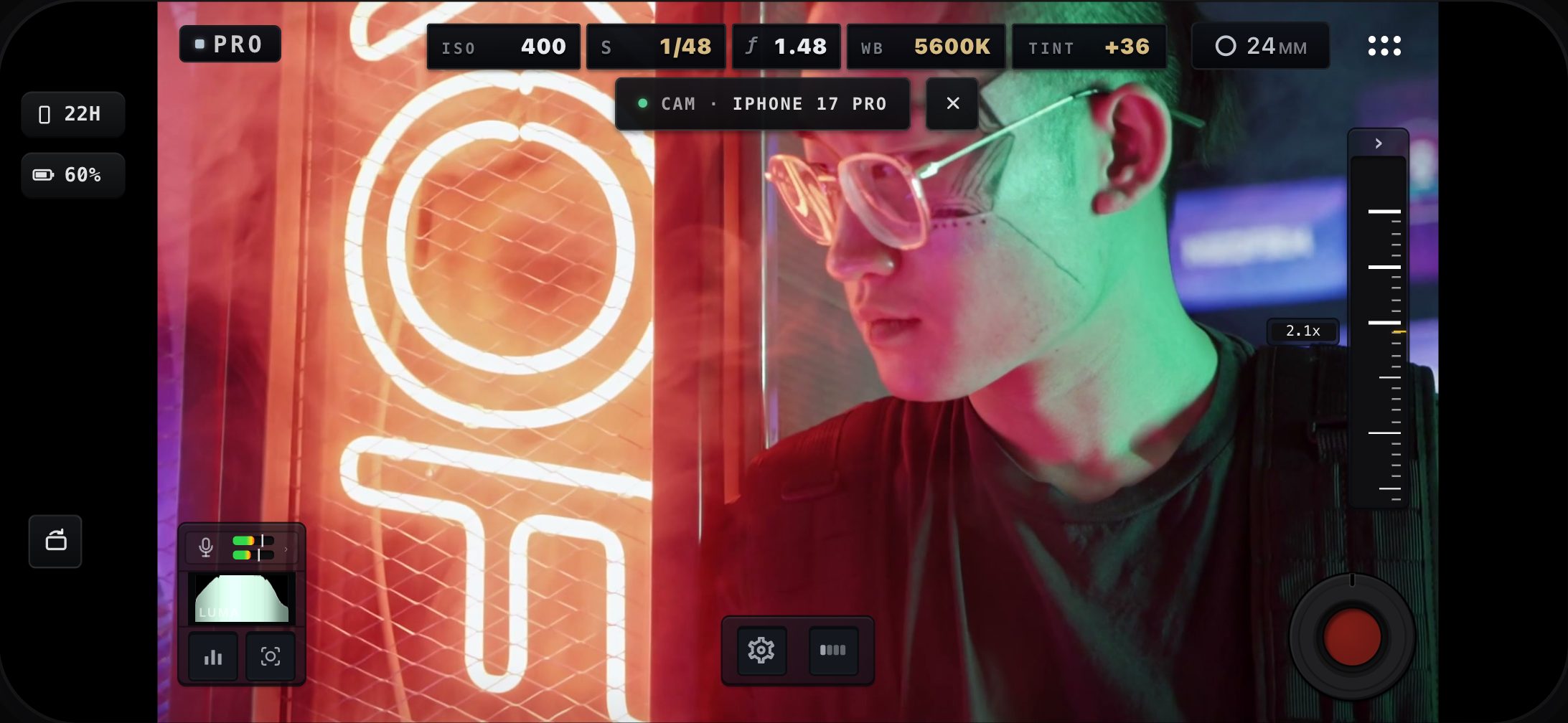
From the controller you run the take and watch the camera's live view, so you can direct the shot from where you're standing.
- Start, pause, resume, and stop recording remotely.
- Zoom, switch lenses, and set the focus or exposure point.
- In Pro mode, adjust ISO, shutter speed, exposure compensation, and white balance.
- Monitor the camera's live view and audio levels.
- Monitor the camera’s battery level, available recording storage, thermal warnings and recording status.
One records, another device controls.
Set the filming iPhone to Source and the controller to Control. The controller can be another iPhone, an iPad, or a compatible Apple-silicon Mac. It finds the camera on your network and mirrors its live view.
Filming iPhone — Source
On a tripod or gimbal, pointed at your subject. It runs the capture and records the file.
iPhone, iPad or Mac — Control
Keep it with you to monitor the live view, operate the camera, and follow recording status and warnings.
Remote Control that works upright, for vertical creators.
Reels, Shorts and TikTok are shot vertically. Hold the filming iPhone upright and a second iPhone controls it upright too, so you frame a vertical shot on a vertical screen instead of reading a sideways picture.
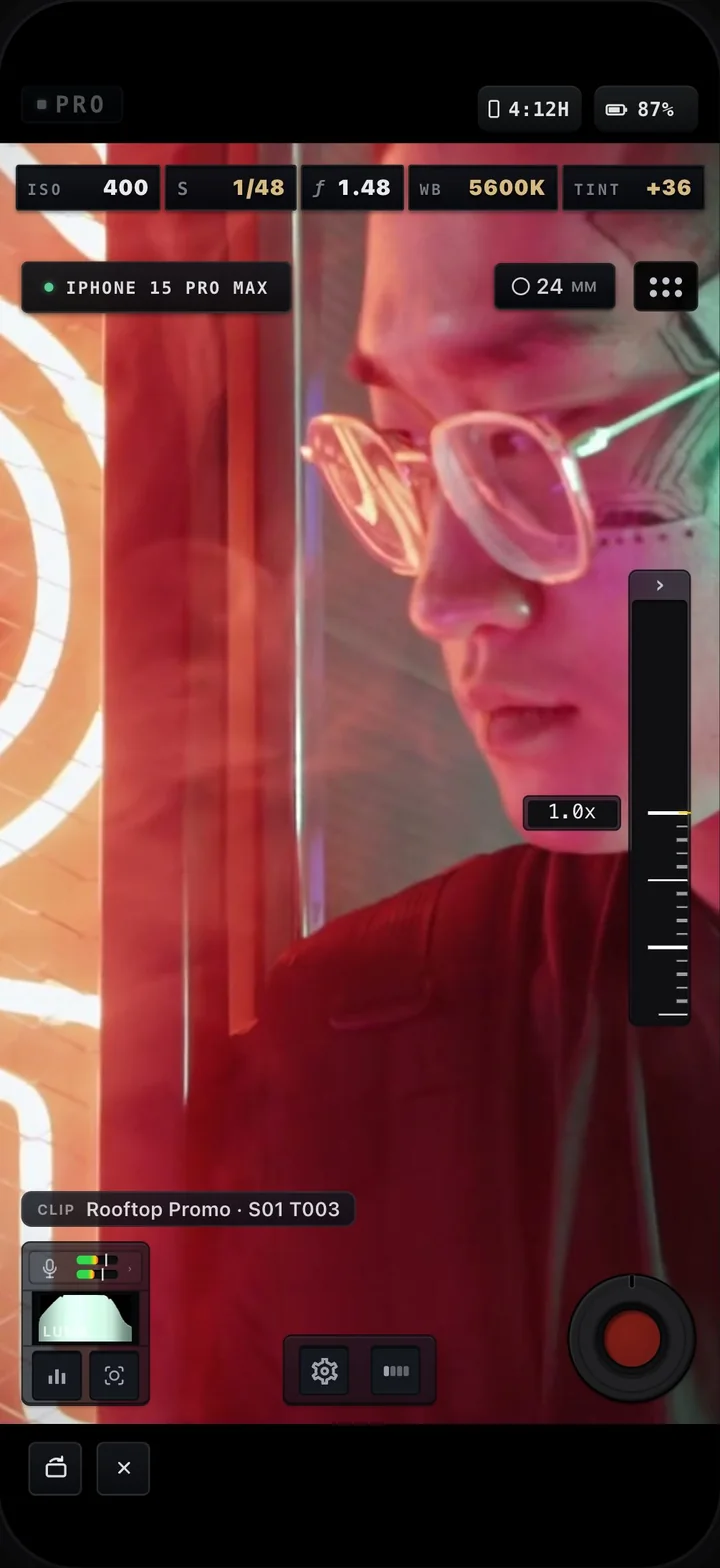
- Matches the camera. On iPhone, the controller takes the filming phone's orientation when it connects. Rotate switches it between upright and landscape whenever you're not recording.
- The full Pro layout, upright. ISO, shutter, ƒ, white balance and tint across the top, the zoom rail, audio meters, the Next Clip slate and Record, placed as in Pro held upright.
- Run the take from the controller. Change exposure, focus and zoom, apply presets, and start and stop recording, while the filming iPhone stays on its tripod, rig or gimbal.
- Files stay on the camera. The filming iPhone records and keeps every take; the controller holds none. Both join the same Wi-Fi or the filming iPhone's Personal Hotspot, with no account.
An iPad controller stays in landscape. Hold the controller upright →
It works over your own network.
Both devices run MoviePro on the same Wi-Fi network or Personal Hotspot. Allow Local Network access on both devices so they can discover and connect to each other. The control link stays local and does not require an account or internet service.
- The current MoviePro app installed on the filming iPhone and controller.
- Both devices connected to the same Wi-Fi network or Personal Hotspot.
- Local Network access allowed on both devices.
- MoviePro open and the camera iPhone awake throughout the session.
- Remote cannot control a camera over the internet or cellular network alone.
Where it earns its keep.
Solo interview
Lock your framing, step in front of the camera, then start the take from your seat.
Mounted or moving camera
Keep the camera mounted on a tripod or gimbal and control the take without touching the rig.
Hard-to-reach angle
Place the camera where the shot needs it, then monitor and operate it without returning to the rig.
Set up Remote Control.
The manual walks through connecting, the controller screen upright or in landscape, and recording from the controller.