Frequently asked questions.
Short answers to common questions. For step-by-step help, see the Manual.
About MoviePro
What is MoviePro?
MoviePro is a professional video camera app for iPhone and iPad. It combines automatic shooting, direct manual control, two-camera recording, remote operation, professional formats, audio monitoring, and detailed post-take reporting in one app.
Who is MoviePro for, and what kinds of videos can I make with it?
MoviePro is designed for solo operators, filmmakers, creators, educators, journalists, trainers, interviewers, and small production teams. It can be used for interviews, events, field reports, teaching videos, performances, social content, controlled productions, and other mobile video work.
How is MoviePro different from Apple's Camera app?
Apple's Camera app is optimized for quick everyday capture. MoviePro adds selectable codecs and color modes, manual exposure and focus, scopes, audio controls, presets, Dual Capture, two-iPhone Remote Control, external-storage workflows, and a Take Receipt that reports what happened during each take.
What changed in MoviePro 10?
MoviePro 10 is a rebuilt camera rather than a visual update. Capture is now organized around Auto Mode, Pro Mode, and Dual Capture; Remote Control is built into the same app; important recording conditions stay visible; and every completed take receives a Take Receipt.
Does MoviePro record photos as well as video?
No. MoviePro 10 is focused on video recording and does not provide a still-photo capture mode.
Which versions of iOS and iPadOS does MoviePro require?
MoviePro requires iOS 18 or later on iPhone and iPadOS 18 or later on iPad. Individual recording capabilities still depend on the cameras and encoders in the device.
Which platforms and devices does MoviePro support?
MoviePro provides full capture interfaces for iPhone and iPad. It also includes an Apple Watch companion for previewing the paired iPhone camera and controlling recording; the Watch does not record independently.
Which MoviePro features depend on the device model, and how can I check support?
Lens choices, maximum resolution and frame rate, 10-bit capture, HDR, Apple Log, ProRes, ProRes RAW, Dual Capture, stabilization tiers, external-drive recording, and some audio options depend on hardware and the selected format. MoviePro checks the active device and shows, hides, or disables choices accordingly.
Where can I find the user manual and latest-version information?
Open Settings > App > Help for the in-app operating guide. The installed version and build appear under Settings > App and at the bottom of Help; the website Manual and release information cover the current public version.
Choosing a Scene
What does "scene" mean in MoviePro?
A scene is a purpose-built capture workspace, not a visual filter or saved preset. Auto Mode, Pro Mode, and Dual Capture arrange the controls and camera behavior around different ways of shooting while using MoviePro's shared recording system.
How do Auto Mode, Pro Mode, and Dual Capture compare?
Auto manages exposure, white balance, and stabilization for fast shooting. Pro adds manual ISO, shutter, white balance, tint, and focus, plus scopes, presets, and repeatable focus and zoom moves. Dual Capture operates two supported cameras together in PIP, Split, Two Files, or Cam Switch formats.
How do I change the active scene?
While the camera is idle, tap the AUTO, PRO, or DUAL badge at the top-left and choose another scene. MoviePro then reconfigures the camera and displays the controls for that scene.
Can I change scenes during a recording?
No. Stop the current take before changing scenes because switching scenes reconfigures the capture session.
Do all scenes use the same recording settings?
The scenes share compatible format, audio, metadata, and storage settings, but each scene applies its own limits. Auto uses automatic exposure and whole frame rates, Pro exposes manual controls and exact fractional rates, and Dual Capture adapts the setup to multi-camera limits.
First Recording
Which permissions are required to make a recording?
Camera access is required to record video. Microphone access is needed for sound; without it, MoviePro can record silently only after confirmation. Photos, Local Network, and Location permissions are needed only for their related export, Remote Control, and location-tagging features.
How do I make and review my first recording?
Open Auto Mode, frame the shot, confirm the intended audio source on the meters, and tap the red Record button. Tap Stop when finished, then use the Take Receipt to confirm the save result and choose Preview, Share, Good Take when available, or New Take.
How do I start and stop a recording?
Tap the main red button while the camera is idle to start. During recording, the same control becomes Stop; MoviePro never blocks the Stop action.
Can I pause and resume within one take?
Yes. Tap Pause during recording to stop adding content temporarily, then tap Resume to continue the same take and file.
What is the Assist Line?
The Assist Line is a prioritized message area near the preview. It shows the most important current recording, audio, storage, stability, or informational condition; a quiet Assist Line is normal and means there is no current message.
Auto Mode
What are the best use cases for Auto Mode?
Use Auto Mode when framing, sound, and timing matter more than operating individual camera parameters. It suits interviews with changing light, teaching videos, field work, family or event coverage, and fast-moving situations.
What does Auto Mode manage automatically, and which controls remain available?
Auto manages exposure, white balance, and system video stabilization. You can still choose a lens, set the focus and exposure point, apply exposure compensation, lock white balance, select a Motion Blur style, monitor audio, and zoom smoothly.
How do I set the focus and exposure point in Auto Mode?
Tap the subject in the preview. The reticle confirms the point MoviePro uses for autofocus and automatic exposure; tap elsewhere to move it.
How do I adjust and reset exposure compensation in Auto Mode?
Tap the EXP chip and move the control toward a brighter or darker offset. The selected value remains visible on the chip; double-tap EXP to return the offset to zero.
Can I lock white balance in Auto Mode?
Yes. Tap the WB chip to hold the current automatic white balance, then tap it again to resume automatic adjustment. This helps prevent color shifts when the framing passes differently colored objects or backgrounds.
What is Motion Blur in Auto Mode?
Motion Blur controls shutter timing while Auto continues managing exposure. Auto lets the system decide; Crisp uses a 90° shutter, Natural uses 180°, and Cinematic uses 360° for progressively more visible motion blur.
How does stabilization work in Auto Mode?
Auto asks iOS for system-managed stabilization appropriate to the active lens and format. It does not expose an Off switch; use Pro Mode when you need to choose a stabilization tier or disable stabilization.
How do I choose a lens in Auto Mode?
While idle, tap the lens control and choose from the cameras available on the current device and format, such as ultra-wide, wide, telephoto, or front. Physical camera changes are made between takes.
How do I zoom smoothly in Auto Mode?
Pinch the preview or use the right-edge zoom rocker. The rocker produces a smooth ramp, and zoom remains available during a take within the range of the active camera and format.
What do the Auto Mode status chips show?
Auto uses compact chips such as EXP and WB to show adjustments, locks, or conditions that need attention. They remain quiet when there is nothing relevant to report, but any setting you apply stays visible so it cannot remain active unnoticed.
Pro Mode
What are the best use cases for Pro Mode?
Use Pro Mode when consistency and repeatability matter more than automatic adaptation. It is suited to controlled lighting, matching multiple takes, deliberate motion blur, manual focus moves, Log or ProRes workflows, scope-based exposure, and saved camera setups.
What additional controls does Pro Mode provide?
Pro adds manual ISO, shutter, white balance, tint, and focus; automatic hold states; precision focus and zoom rails; A/B moves; scopes and monitoring overlays; presets; Next Clip metadata; and explicit stabilization choices.
What do AE and ME mean, and how do I switch between automatic and manual exposure?
AE means the camera is choosing ISO and shutter automatically; ME means you control them. Use the exposure-state control to change modes, or move the ISO or shutter rail to enter ME; an amber lock indicates that the current AE result is being held.
How do the Pro Mode control rails work?
Tap ISO, shutter, WB, or TINT in the telemetry bar to open that rail; opening one closes the previous telemetry rail. Focus has its own control and can remain open beside another rail when the screen layout allows it.
How do I adjust ISO and shutter, and choose between shutter angle and speed?
Open the ISO or shutter value in the telemetry bar and move its rail. Choose Angle or Speed under Settings > Camera > Shutter Units; angle expresses exposure as part of each frame interval, while speed displays values such as 1/50.
How can I lock white balance in Pro Mode, and what is the difference between held AWB and manual white balance (MWB)?
Held AWB freezes the automatic white-balance result the camera has already chosen. MWB gives you direct control of color temperature and tint; moving either manual rail enters MWB. Use held AWB for a quick lock and MWB for a measured or repeatable setting.
How do automatic hold and lock states appear in Pro Mode?
A normal automatic state continues adapting to the scene. An automatic value shown in amber with a lock icon is held at its current result; a manual value follows the position you set on its rail until you change modes.
How do I use manual focus in Pro Mode?
Open the Focus Rail and switch from AF to MF, then drag between Near and Far to select a lens position. Focus Peaking can outline sharp high-contrast edges to help you judge the result.
How do I create repeatable A/B focus pulls and zoom moves, and control their timing?
Open the Focus or Zoom Rail's A/B controls, set the two endpoints, choose a duration from 0.5 to 3 seconds, and run A→B or B→A. Rehearse before recording, especially after changing lenses or subject distance.
Which scopes and image-analysis tools are included, and do they appear in the recording?
Pro includes Histogram, RGB Parade, Waveform, and Vectorscope, plus Focus Peaking, Zebra, False Color, and Clipping overlays. They affect only the monitoring image and are never burned into the recording.
Can I enlarge the scopes for a more detailed view?
Yes. Tap the compact scope readout to open the full Analytics panel. On iPhone you can pinch the expanded panel for a closer view within the available screen space; on iPad, tap the scope chassis to switch between its compact and full tiers.
What are Pro Mode presets for, and what should I check after loading one?
Presets store repeatable Pro camera and format setups. Select a preset and tap Apply, then confirm the effective lens, exposure, white balance, focus, zoom, audio, stabilization, and format—especially when the preset was created on another device.
What is Next Clip in Pro Mode, and how do I set details for the next recording?
Next Clip prepares slate metadata for the upcoming take. Open it before recording to set the Project, Camera ID, and optional Scene and Take values; MoviePro freezes those details when the take begins.
Which formats or frame rates require Pro Mode?
Exact NTSC fractional rates—23.98, 29.97, and 59.94—require Pro Mode with manual exposure because the sensor cadence must be held precisely. Auto and Dual Capture use the nearest whole-number rate instead.
Dual Capture
What is Dual Capture, and when should I use it?
Dual Capture records two supported cameras on the same device at once. Use it for presenter-and-scene videos, interview reactions, front-and-rear coverage, or two rear-camera perspectives when one operator needs two simultaneous views.
Which devices and camera pairs support Dual Capture?
Dual Capture requires a device that supports Apple's multi-camera capture system. MoviePro lists only the pairs the current device can run together, which may include front plus wide, telephoto, or ultra-wide cameras and supported rear-camera pairs.
What do PIP, Split, Two Files, and Cam Switch record?
PIP places one feed over the other in one composed file. Split combines both feeds side by side; Two Files records each camera separately as a matched take; Cam Switch records one file while you cut between the two live cameras during the take.
How do I choose the Dual Capture format and primary camera?
Choose the format and supported lens pair while idle. In PIP, Split, and Two Files, use Swap to select the primary feed; in Cam Switch, the live selector chooses which camera is being written at that moment.
How do focus and zoom work in Dual Capture?
Tap the primary feed to set its focus and exposure point, and use the zoom control for that primary camera. Change the lens pair or other session-reconfiguring choices between takes.
How do exposure, white balance, AE/WB lock, and manual-control limits work in Dual Capture?
Dual Capture uses automatic exposure and white balance rather than Pro's manual rails. AE/WB Lock holds the current automatic result for both cameras; release it when you want both feeds to adapt again.
Which resolutions and frame rates are available in Dual Capture?
Available resolutions depend on the device, camera pair, and codec. Dual Capture records at up to 30 fps and converts fractional NTSC selections to the nearest whole-number rate.
How is audio recorded in Dual Capture?
One selected microphone supplies audio for the whole Dual Capture take, including Two Files. Confirm the source and meters before recording because the two camera feeds do not use separate microphones.
How does Dual Capture affect battery, storage, heat, and processing demand?
Running two cameras, previews, and encoders uses more power and processing capacity than a single-camera scene. It can also increase heat and storage demand—especially in Two Files—so monitor the status indicators and test the intended format for long sessions.
Remote Control
What is MoviePro Remote Control, and when should I use it?
Remote Control lets one iPhone record while a second iPhone monitors and operates it over a local network. It is useful when the filming phone is mounted, out of reach, facing away from the operator, or positioned where touching it would disturb the shot.
How do I set up Remote Control, and what devices do I need?
Install MoviePro on two iPhones, connect both to the same Wi-Fi network or Personal Hotspot, and allow Local Network access. Keep MoviePro open and the filming iPhone awake; recording through Remote Control also requires the Pro unlock or an active 7-day pass.
How do I choose the camera and controller roles and connect them?
On the filming iPhone, open Auto or Pro and choose Remote Camera from the Remote control. On the second iPhone choose Remote Control, select the filming iPhone when it appears, and wait for settings synchronization and the live view.
Which networks can Remote Control use, including Wi-Fi and Personal Hotspot?
Both iPhones must share the same local Wi-Fi network or Personal Hotspot. Remote Control is not an internet-control service and cannot connect devices across unrelated cellular or remote networks.
What can I control and monitor from the remote device?
You can start, pause, resume, and stop; monitor the live view, audio, timer, battery, storage, thermal state, and Assist Line; zoom; set focus or exposure points; select supported lenses while idle; adjust supported Pro controls; and change compatible format settings between takes.
How many cameras can one controller operate at a time?
One. The current version of Remote Control operates one Remote Camera iPhone at a time.
What happens if either device goes into the background?
Keep MoviePro in the foreground on both devices and keep the Remote Camera iPhone awake. The camera leaves discovery soon after its app goes into the background; if only the control link drops during a take, the filming iPhone still owns the recording and continues locally.
What should I check if the controller cannot find the camera?
Confirm both iPhones are on the same local network, Local Network access is enabled, MoviePro is open on the filming iPhone, and that phone is awake. Temporarily disable VPN or filtering software, move closer to the access point, then reconnect or reopen MoviePro if necessary.
What should I check if the Remote Control preview unexpectedly becomes delayed, soft, or frozen?
Confirm both phones remain on the same network and MoviePro is still active on the filming iPhone. Move closer, reduce hotspot congestion, or reconnect; MoviePro may lower monitoring bitrate on a limited network, but that does not reduce the quality of the file recorded on the Remote Camera iPhone.
Is the Remote Control connection private and local?
Yes. The live view and commands travel directly between your devices over the shared local network or Personal Hotspot. Remote Control does not require a MoviePro account and does not send the camera feed through MoviePro servers.
Lenses & Focus
Can I switch lenses while recording?
Physical camera changes are made between takes because they reconfigure the capture session. During recording, zoom positions that remain on the active camera can still be used within that camera's supported range.
Can I zoom while recording, and is the zoom optical or digital?
Yes, you can zoom during a take. Choosing a different physical camera provides its optical viewpoint, while continuous zoom within the active camera uses its available sensor crop and digital range; large digital factors trade away detail.
How does tap-to-focus work?
Tap a subject in the preview to place the focus and exposure point, and the reticle confirms the target. If Settings > Camera > Tap Action is set to Hide UI, change it back to Tap to Focus before using this gesture.
Can I lock focus and exposure together, and which focus-reticle styles are available?
In Pro Mode, the Reticle setting offers Standard, Center, and Hidden behavior. Center mode lets a preview tap hold focus and exposure together; for focus-only control, use AF hold or MF on the Focus Rail.
How do I keep exposure and white balance consistent during a take?
In Auto, lock WB and use exposure compensation while automatic exposure continues. In Pro, hold the current AE or AWB result, or switch to ME and MWB for fully repeatable values. In Dual Capture, AE/WB Lock holds the automatic result for both cameras.
Formats & Quality
How do I choose resolution, frame rate, codec, and color mode?
Open Settings > Video Format and choose Video Encoding, Color Mode, Resolution, and Frame Rate in that order. Each choice can constrain the next, so review the effective values after changing a lens, scene, preset, or format.
Which aspect ratios can MoviePro record?
Standard recording paths offer 16:9, 4:3, 2.40:1, and 1:1 where supported. Framing Guide keeps the full selected frame and shows the aspect as a guide; Crop bakes it into the recorded file. ProRes RAW uses device-derived full-sensor dimensions instead.
Which resolutions can MoviePro record?
MoviePro offers curated 4K, 1080p, and 720p tiers for standard formats, subject to the active device, lens, codec, color mode, aspect ratio, and frame rate. ProRes RAW uses the full-sensor resolutions supplied by supported hardware.
Which frame rates and slow-motion options can MoviePro record?
MoviePro offers standard cinema and broadcast rates supported by the active configuration, with compatible devices and formats reaching 120 or 240 fps for slow motion. Higher rates impose additional codec, audio, analytics, and monitoring limits.
Can MoviePro record NTSC fractional rates, and why do they require particular exposure settings?
Yes. Pro Mode records 23.98, 29.97, and 59.94 precisely. Maintaining that fractional sensor cadence requires manual exposure, so selecting one switches exposure to ME; Auto and Dual Capture use the nearest whole-number rate.
Which video codecs and file types does MoviePro support?
MoviePro records QuickTime .mov files using H.264, HEVC, supported ProRes 422 variants, or ProRes RAW. The choices shown depend on the device and the rest of the selected format.
Does MoviePro record ProRes, and which ProRes variants are available?
Yes, on supported devices and formats. MoviePro can offer ProRes 422, 422 HQ, 422 LT, and 422 Proxy; these use fixed, substantially higher data rates than H.264 or HEVC.
Does MoviePro record ProRes RAW, and what does it require?
Yes, when the device exposes a compatible full-sensor RAW format. MoviePro offers ProRes RAW and ProRes RAW HQ, and both require a compatible USB-C external SSD formatted as exFAT.
Which color modes does MoviePro support?
Depending on the device and codec, MoviePro offers SDR 8-bit Rec.709, SDR 10-bit Rec.709, HDR, Apple Log, and Apple Log 2. Unsupported combinations are omitted or disabled.
What is the difference between SDR 8-bit and SDR 10-bit?
Both use an SDR Rec.709 output, but 10-bit stores more tonal and color steps, giving supported grading and processing workflows more precision. SDR 8-bit is the more broadly compatible choice.
Does MoviePro record HDR video?
Yes, on supported 10-bit devices and formats. HDR requires a compatible display and editing or delivery workflow to be viewed correctly; otherwise it can appear different from the MoviePro preview.
Does MoviePro record Apple Log or Apple Log 2, and why does Log footage look flat?
Yes, on supported devices; Apple Log 2 additionally requires iOS 26 or later. Log deliberately stores a low-contrast, low-saturation image for grading latitude, so it normally looks flat until a suitable transform or grade is applied.
Why is a format option hidden, disabled, or changed when I select another option?
Encoding, color mode, resolution, frame rate, lens, stabilization, and scene constrain one another. MoviePro exposes only combinations the active hardware can deliver and may adjust a dependent choice when an earlier part of the format chain changes.
Can I adjust the recording bitrate or quality?
H.264 and HEVC provide video-quality tiers that scale their data rate. ProRes and ProRes RAW use fixed codec-defined rates, and Long-Record Mode uses the system encoder's bitrate.
What is Long-Record Mode?
Long-Record Mode uses Apple's hardware movie encoder to reduce processing load, heat, and power use during extended takes. It uses system video quality, records AAC audio, treats the selected aspect as a framing guide, and can fall back to HEVC if the hardware path cannot deliver the requested combination.
Does every recording contain timecode?
No. Standard MoviePro writer recordings add a time-of-day timecode track. Long-Record Mode, ProRes RAW, and other hardware movie-file paths—such as recording above 60 fps—do not include that track.
Will MoviePro footage work in Final Cut Pro, DaVinci Resolve, and other editors?
Yes. MoviePro writes standard QuickTime files, and its timecode is designed for workflows such as Final Cut Pro and DaVinci Resolve. Confirm that the editor and computer support the chosen codec, bit depth, HDR, Log, or ProRes RAW format before an important production.
Audio
Which audio inputs and microphone brands can MoviePro use?
MoviePro can use the built-in microphones and compatible wired, USB-C, headset, wireless-receiver, and Bluetooth inputs recognized by iOS. There is no separate brand whitelist: if iOS presents a DJI, RØDE, Shure, or other device as an input, MoviePro can select and record it. You do not have to take that on trust while shooting: the microphone icon beside the meters changes shape with the kind of input actually in use — a microphone for the built-in mics, a plug for wired, USB-C and headset inputs, a Bluetooth mark for wireless ones — and shows struck through if the input drops. A glance confirms the take is on the microphone you intended.
Can I use a USB-C or wired microphone?
Yes. Connect it before the take, confirm its name in the audio controls, and watch the meters. Most USB microphones offer manual gain control — through MoviePro's input-level control, on the microphone or receiver itself, or both. MoviePro asks the connected input what it supports rather than assuming: the input-level control is live when that input exposes gain, and shown disabled rather than moving a control that would do nothing.
Can I use a wireless microphone receiver?
Yes, if iOS recognizes and routes the receiver as the current audio input. Connect it before recording, confirm that MoviePro shows the expected input name, and test the meters with every intended transmitter. USB or adapter-connected receivers do not require Bluetooth Mic; enable it only when the receiver itself uses a Bluetooth audio-input route.
Can I use AirPods or another Bluetooth microphone?
Yes. Enable Bluetooth Mic in MoviePro and make sure iOS has connected the device in a microphone or hands-free mode, not playback-only stereo mode. Test the range and connection before an important take.
How do I select an audio input, and when should I connect an external microphone?
Connect the microphone before recording, then use Settings > Audio > Microphone to choose Auto, a built-in position, or None. MoviePro follows iOS-recognized external inputs, and Pro's input picker lets you confirm the exact source when several are available. While you shoot, the microphone icon beside the meters reflects the kind of input in use — built-in, wired or USB, or Bluetooth — so the source stays confirmable without opening a menu.
What happens if the audio route changes during a take?
MoviePro shows an immediate warning such as Mic Disconnected while the video take continues. Check the cable, receiver, Bluetooth link, or transmitter, then use the Take Receipt and playback to decide whether the take is usable.
Can I monitor audio through headphones?
Yes, when headphones are connected and the route supports monitoring. Tap the audio meters to expand the audio controls, then use Monitor in Auto or MON in Pro to listen to the incoming signal while recording.
What do the audio-meter colors mean?
Green indicates a healthy working range, yellow means the signal is approaching the top of the meter, and red indicates a very hot signal with possible clipping. Leave headroom for unexpected peaks.
Can I adjust microphone gain in MoviePro?
Yes, when iOS and the active input expose software gain control. If the control is unavailable, adjust the microphone or receiver itself or change its distance from the source.
Can MoviePro record stereo audio, and how does orientation affect left and right channels?
Yes, when the selected source provides two channels. For the supported built-in stereo microphone path, MoviePro follows the device's physical orientation so left and right remain aligned, then freezes that mapping for the take; external devices supply their own channel layout.
Does MoviePro record AAC or uncompressed PCM, and when are audio choices restricted?
MoviePro offers AAC, integer LPCM, and 32-bit IEEE Float on supported paths, with selectable sample rates. Long-Record Mode, ProRes RAW, and recording above 60 fps use the hardware movie-file path, which can require AAC or reinterpret unsupported PCM choices.
What should I check if a microphone does not appear as an input?
Connect it before the take, confirm iOS recognizes it, and make sure Microphone is not set to None. For Bluetooth, enable Bluetooth Mic and use microphone mode; if another app is holding the input, close it and reopen MoviePro with the microphone connected.
What should I check if the audio is distorted or clipping?
Lower MoviePro's input gain when available, reduce the microphone or receiver output, or move the microphone farther from the source. Floating-point recording cannot repair clipping that occurred before the signal reached MoviePro.
What should I check if a recording unexpectedly has no audio?
Open MoviePro Settings > Audio > Microphone and make sure it is not set to None. Check the mic status: MoviePro shows a disconnected-microphone glyph when no microphone is available. Verify the intended source name and meter movement, then check external cables, receiver power, transmitter mute, or Bluetooth mode. Read the Take Receipt's Audio result and test playback through the intended output.
Stabilization
Does MoviePro stabilize video, and which stabilization choices are available?
Yes, when the active lens and format support stabilization. Auto uses a system-managed mode; Pro offers Off, Standard, Cinematic, and Extreme, with the strongest available implementation selected according to the device and operating system.
Why might stabilization be unavailable with a particular format or lens?
Stabilization capability belongs to the active camera connection, so a mode supported on one lens, resolution, or frame rate may not work on another. Choose a lighter tier, lower the format load, change lenses, or use Off in Pro.
Can I turn stabilization off?
Yes, in Pro Mode. Open More > Stabilize and choose Off. Auto Mode always uses system-managed stabilization and does not expose an Off setting.
Can I use MoviePro with a gimbal, and should I change stabilization?
Yes. A gimbal stabilizes the phone physically while MoviePro handles capture. In Pro, compare Off and Standard and keep the result that best suits the rig and movement, because combining physical and electronic correction can sometimes affect deliberate moves.
How can I start recording without touching a mounted iPhone?
Use Remote Control from a second iPhone or the MoviePro Apple Watch app paired with the filming iPhone. Keep MoviePro open on the mounted iPhone.
Is there an Apple Watch app, and what can it control?
Yes. The Watch app shows a live preview from the paired iPhone and can start or stop recording. MoviePro must remain open on the iPhone, and any warning that needs a decision directs you back to the phone.
Saving & Storage
Where are recordings stored by default, and which other save destinations are available?
The default destination is MoviePro's App Library. You can instead save to the system Photo Library or choose Files/External Storage; each recording appears only in the destination that actually received it.
How do I change the recording destination?
Open Settings > Storage > Save Destination and choose App Library, Photo Library, or Files/External Storage. On supported hardware, Record to Connected SSD appears when an eligible drive is available.
Can MoviePro record directly to an external drive, and which drives and file systems are supported?
Yes, on supported USB-C devices. Use a writable external SSD that iOS exposes to MoviePro and does not mark unsuitable for capture; ProRes RAW specifically requires a compatible USB-C SSD formatted as exFAT. Test the complete drive, cable, and format combination before critical work.
What happens if an external destination is unavailable or disconnected, and can MoviePro fall back safely?
If an ordinary Files or external destination is unavailable when a take begins, MoviePro can fall back to the App Library and reports the actual destination in the Take Receipt. ProRes RAW cannot fall back internally and will not start without compatible external storage. Never disconnect a drive during recording or finalization.
Which recording formats require external storage?
ProRes RAW and ProRes RAW HQ require a compatible external SSD. Other combinations remain subject to the active device and iOS capture limits, which MoviePro checks before starting.
Why might MoviePro report low storage when the device still appears to have free space?
MoviePro evaluates the active save destination, not a different volume shown elsewhere. Internal App Library space, Photos capacity, and an external drive can differ, and high-data-rate or Two Files recording consumes the remaining space much faster.
How can I estimate storage requirements for my recording settings?
Open the storage indicator to see MoviePro's estimated remaining recording time for the active destination and format. Higher resolution, frame rate, bitrate, ProRes or RAW codec, and Dual Capture Two Files all increase the estimated consumption.
Receipt & Library
What is the Take Receipt, and what recording information does it show?
The Take Receipt is MoviePro's post-take report. It confirms whether the file was saved and presents available audio, exposure, format, storage, frame-drop, slate, and recording-integrity information, with Preview, Share, and Good Take actions when eligible.
What is the difference between the brief and full Take Receipt?
With Take Receipt off, a brief summary appears for a few seconds; tap it to open full details. With Take Receipt on, the full receipt appears after every take and stays until dismissed. Failed takes and remotely controlled takes always show the full receipt.
What does "Take failed" mean?
MoviePro did not produce a usable saved file. Check destination access, available space, external-drive state, and the receipt's failure details, then make a short test recording before repeating important material.
Which recordings appear in the App Library, and why might a recording be missing?
Only takes saved to the App Library appear in MoviePro's App Library. A recording sent to Photos or Files remains there, while an external file can also become unavailable when its drive is disconnected; check the Take Receipt and Save Destination.
How do I group, sort, find, and search for App Library clips?
App Library clips are grouped by date and can be sorted Newest first, Oldest first, or Favorites first. Find filters the grid to All Clips, Favorites, Good Takes, or Issues; it is not a free-text filename search.
What are Good Take, Favorite, and Issues?
Good Take marks a slate-based take you prefer for the edit. Favorite is a general App Library flag. Issues collects takes whose recorded receipt contains a warning or failure; all three can be used as App Library filters.
What can I do in the player, and what does the clip Info panel show?
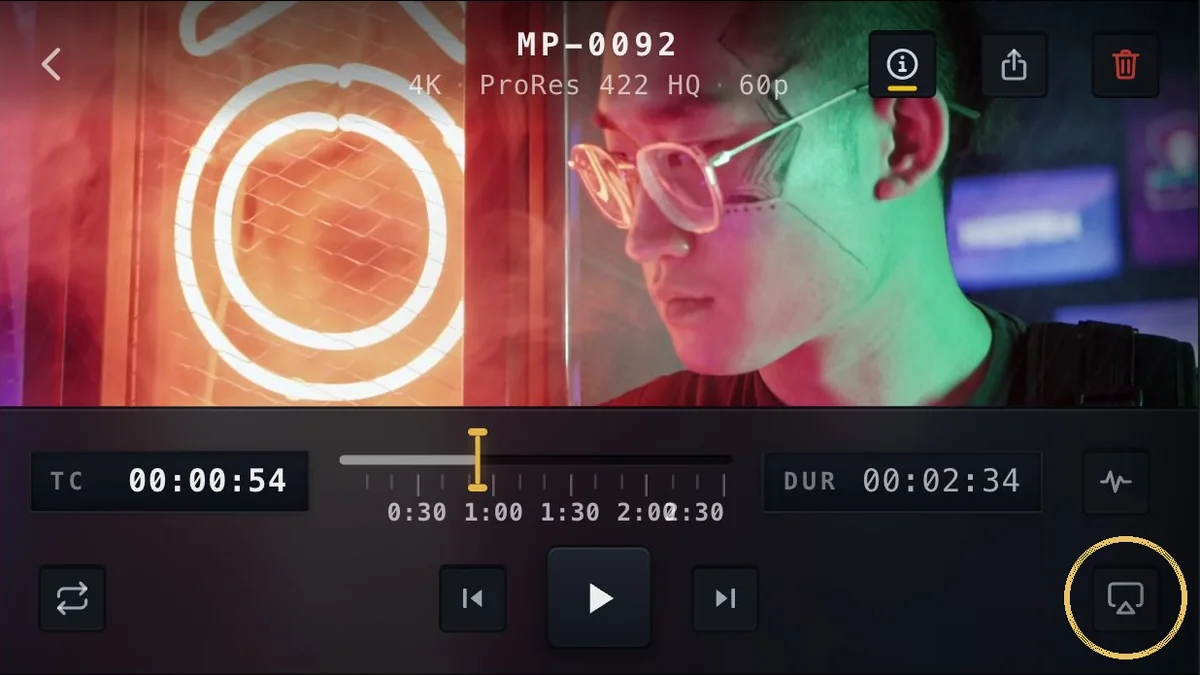
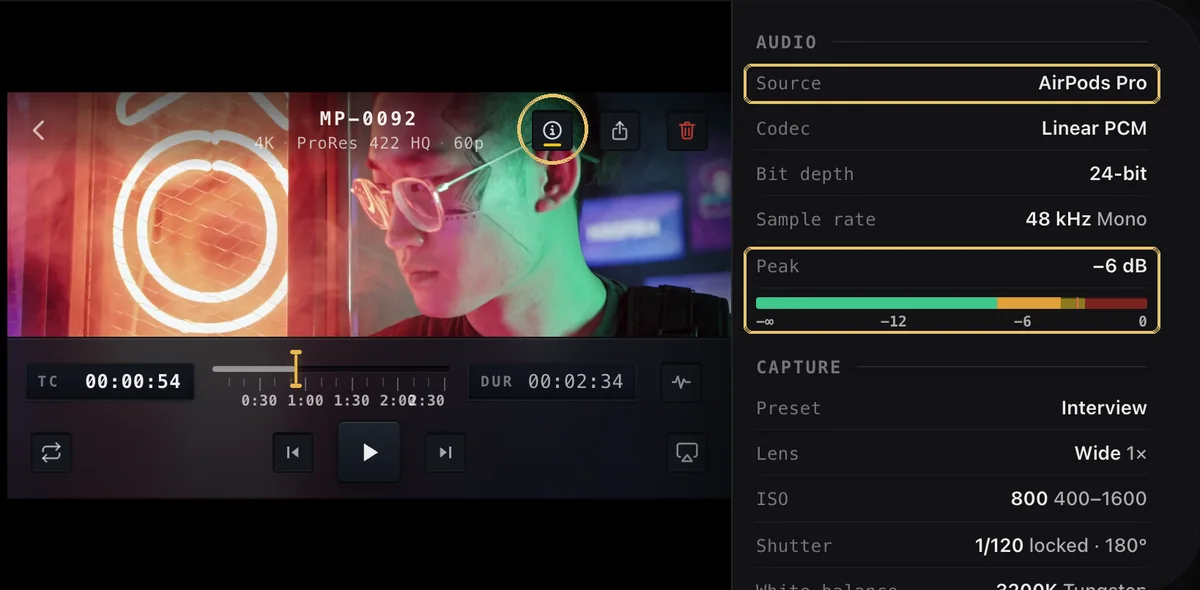
The player supports play, pause, scrubbing, sharing, and audio-output selection. Info shows available facts such as resolution, frame rate, codec, color mode, frame drops, audio input and peak, lens and capture settings, stabilization, slate, and recorded location.
Can I share several clips at once?
Yes. Tap Select in the App Library, choose the clips, then use Share. The same selection mode also supports batch Favorite and Delete actions.
How do I copy an App Library clip to Photos?
Open the clip or select it in the App Library, tap Share, and choose Save to Camera Roll in the system share sheet. MoviePro keeps the App Library original.
Are originals preserved when I share, and why can the shared filename differ?
Yes. MoviePro leaves the original recording unchanged and creates an export copy when needed. That copy can receive a readable name based on project, date, scene, or take metadata.
Why can clips in Files or Photos contain less MoviePro metadata than App Library clips?
The App Library stores the video together with MoviePro's receipt, Good Take state, and sidecar records. Photos or Files receive the video and embedded metadata, but not every App Library record travels with it.
What happens when I delete a clip from the App Library?
After confirmation, MoviePro permanently removes the selected App Library video and its associated MoviePro records. Back up anything important before deleting it.
Privacy
Why does MoviePro need Camera and Microphone access?
Camera access supplies the live image and is required for video recording. Microphone access adds sound; if it is unavailable, MoviePro asks for confirmation before starting a silent recording.
Why does MoviePro ask for Photo Library access?
Photo Library access is used only when you choose Photos as the save destination or export a clip to Photos. Recording to the MoviePro App Library or Files does not require Photo Library access.
Why does MoviePro ask for Local Network access?
Local Network access lets two iPhones discover each other and communicate for MoviePro Remote Control. It is not needed for normal recording on one device.
Why might MoviePro ask for Location access?
MoviePro asks only if you enable Location Tagging. When allowed, the location can be written into the recording's metadata; the feature is optional and can remain off.
What happens if I deny a permission, and how do I change it later?
Only the feature that needs the permission is affected: denying Camera blocks recording, denying Microphone limits you to confirmed silent recordings, and denying Photos, Local Network, or Location disables the related destination or feature. To change a decision later, open the iPhone Settings app, select MoviePro, and enable the required permission.
Does MoviePro upload my footage, track me, or sell my personal data?
MoviePro does not upload your recorded video or audio and does not sell personal data. Release builds may send limited app-usage events and crash diagnostics through Firebase to help improve reliability; these diagnostics do not contain your footage, audio, or recorded content. See the MoviePro Privacy Policy for full details.
Troubleshooting
What should I check if a feature is unavailable or a setting changes after I select another format?
MoviePro keeps the active camera configuration valid, so changing the lens, codec, color mode, resolution, frame rate, stabilization, or scene can make another option unavailable or require a compatible value. Stop recording, review the Video Format chain and Assist Line, then reduce the format load or select a supported combination. Some features also require particular hardware, iOS support, or the Pro unlock.
What happens when MoviePro shows a recording warning, and what should I check if a take does not start?
A warning explains a condition that needs attention and may offer a safe choice, such as confirming a silent take. If recording does not start, check Camera and Microphone permissions, free space at the selected destination, the connection to any required external SSD, the Assist Line, and access to the selected recording mode. Wait briefly if the camera is still reconfiguring, then try a short test take.
What should I check if recording stops unexpectedly?
Read the Take Receipt first, then check remaining space, the selected Record Duration, external-drive and cable stability, device temperature, and interruptions such as another app taking control of the camera or audio session. After correcting the likely cause, make a short test recording before repeating an important take.
Does MoviePro report dropped frames, and what should I check if they occur?
Yes. For recording paths that support frame monitoring, the Take Receipt and clip Info panel report detected frame drops. If drops occur, check storage speed and free space, let a hot device cool, close unnecessary processing, and try a lower resolution, frame rate, bitrate, or codec load. Some very high-frame-rate paths do not provide the same live drop monitoring.
Why might the preview stutter while the recording remains smooth?
The on-screen preview shares processing resources with capture, scopes, stabilization, RAW or other demanding formats, and Remote preview streaming. MoviePro prioritizes the recording, so occasional preview hesitation does not necessarily mean the saved file dropped frames. Check the Take Receipt or clip Info panel to verify the take, and reduce monitoring or format load if needed.
Why might an iPhone become hot while recording?
Video encoding, high frame rates, ProRes or RAW capture, Dual Capture, live scopes, charging, and warm surroundings can generate substantial heat. Move the phone out of direct sun, remove an insulating case if safe, stop charging when practical, allow it to cool, or choose a lighter format. If iOS presents a temperature warning, stop recording and let the device cool before continuing.
Why might the screen appear dim even when the recording is correctly exposed?
MoviePro's Screen Dimmer reduces display brightness to save power and heat without changing the recorded exposure. Check Settings > Camera > Screen Dimmer and the iPhone's own brightness or thermal dimming before adjusting exposure solely from screen brightness; use the meter, zebra, or scopes when judging the image.
What should I check if the preview and saved recording look different, especially with HDR or Log?
Confirm that the viewing app and display support the recording's color mode and metadata. HDR can look different on an SDR display, while Log is intentionally flat and normally needs a compatible transform or color grade. Stabilization and display-preview processing can also change framing or appearance, so compare the file in a color-managed player and check the Take Receipt for the format actually recorded.
What should I check if focus lock or manual focus does not respond?
Check the current AF/MF state, the selected Tap Action, and whether the active lens and scene support the control you are trying to use. In Auto, use Tap to Focus and then lock focus if needed; in Pro, select manual focus or open the focus rail. Aim at a subject with clear contrast, and reopen the rail or reselect the lens if the camera has just been reconfigured.
What should I check if MoviePro cannot write to an external drive?
Confirm that iOS can see the drive, it is writable, has sufficient free space, and remains connected through a reliable data cable or powered hub if required. Reopen Save Destination and select or adopt the drive again. ProRes RAW requires a compatible USB-C external SSD formatted as exFAT; never disconnect it while a take is recording or finalizing.
What should I check if MoviePro cannot save to Photos?
Confirm that Photos is the selected destination, MoviePro has Photo Library permission in iPhone Settings, and the device has enough free space. Check the Take Receipt for the destination that actually received the take, because a recording saved to the App Library or Files will not automatically appear in Photos.
What should I check if the Apple Watch is not connecting or controlling the camera?
Make sure the Watch is paired with the iPhone, the MoviePro Watch app is installed, MoviePro is open on the iPhone, and both devices are nearby with their normal wireless connections enabled. If recording needs a warning or permission decision, complete it on the iPhone before using the Watch control again.
What should I do if MoviePro becomes unresponsive or closes unexpectedly?
Reopen MoviePro and check whether the last take appears in its destination or App Library before recording again. Let an overheated device cool, free storage if necessary, disconnect and reconnect optional accessories, and retry with a short, simpler-format test. If the problem repeats, restart the iPhone, install the latest MoviePro and iOS updates available to you, and contact support with the details listed below.
What information should I collect before contacting support?
Include the iPhone model, iOS version, MoviePro version and build, selected scene or role, lens, resolution, frame rate, codec, color mode, microphone, save destination, and any connected drive or accessory. Describe the exact steps and copy the Assist Line, warning, Take Receipt, or clip Info wording. MoviePro's Contact Support screen can attach app diagnostics; it does not attach your footage.
Pricing & Support
What can I do in MoviePro for free?
You can record in Auto Mode for free. You can also open and explore Pro Mode, Dual Capture, and Remote Control without paying, but recording with those feature sets requires the one-time Pro unlock or an active 7-day pass — $19.99 and $2.99 respectively in the US App Store, and set per storefront elsewhere.
What does the one-time Pro purchase unlock?
The one-time Pro unlock is $19.99 in the US App Store and permanently unlocks recording in Pro Mode and Dual Capture, plus recording through Remote Control, for the purchasing Apple Account. It is a one-time in-app purchase rather than a recurring charge. App Store pricing is set per storefront, so the amount shown in your region may differ; the price on the App Store at the moment of purchase is the one that applies.
Can I try the paid recording features before buying the full unlock?
Yes. The non-renewing 7-day pass is $2.99 in the US App Store and unlocks the same Pro, Dual Capture, and Remote recording capabilities for seven days. It expires automatically and does not convert into a subscription. Pricing varies by App Store storefront, so the amount shown in your region may differ.
Does MoviePro require a subscription?
No recurring subscription is required under MoviePro's current purchase model. Auto recording is free, the Pro unlock is a one-time purchase, and the optional 7-day pass does not renew automatically. Customers with an older subscription may still see its management entry in Settings.
I purchased MoviePro before; how do I restore access?
Open MoviePro's purchase or App settings and choose Restore Purchases while signed in with the Apple Account used for the original purchase. Previous eligible paid owners should use the same restore process; if access is still missing, contact support with the purchase history or receipt details available from Apple.
Can I use my purchase on multiple devices or through Family Sharing?
On another compatible device using the same Apple Account, install MoviePro and choose Restore Purchases. Whether a purchase can be shared through Apple Family Sharing is shown on the App Store listing and also depends on the family's purchase-sharing settings; check the listing for the current position before relying on it.
How do refunds work?
Refund eligibility and decisions are handled by Apple. If MoviePro shows Request a Refund in App settings, use it for the eligible purchase; otherwise sign in at reportaproblem.apple.com, choose Request a refund, and select the MoviePro transaction.
How do I contact MoviePro support?
Open Settings > App > Help or Contact Support inside MoviePro, or email support@moviepro.app. Include the device, app and iOS versions, recording settings, and the exact warning or Take Receipt details so the issue can be reproduced.
Ready to record?
Auto recording is free. Unlock recording in Pro and Dual Capture, plus recording through Remote mode, with a one-time purchase.