 MoviePro
iPhone 18 Pro manual controls for video
Apple's Camera app on iPhone 18 Pro lets you set aperture, shutter speed and white balance by hand and check a histogram. MoviePro's Pro Mode includes those controls and adds the rest of a shooting workflow around them.

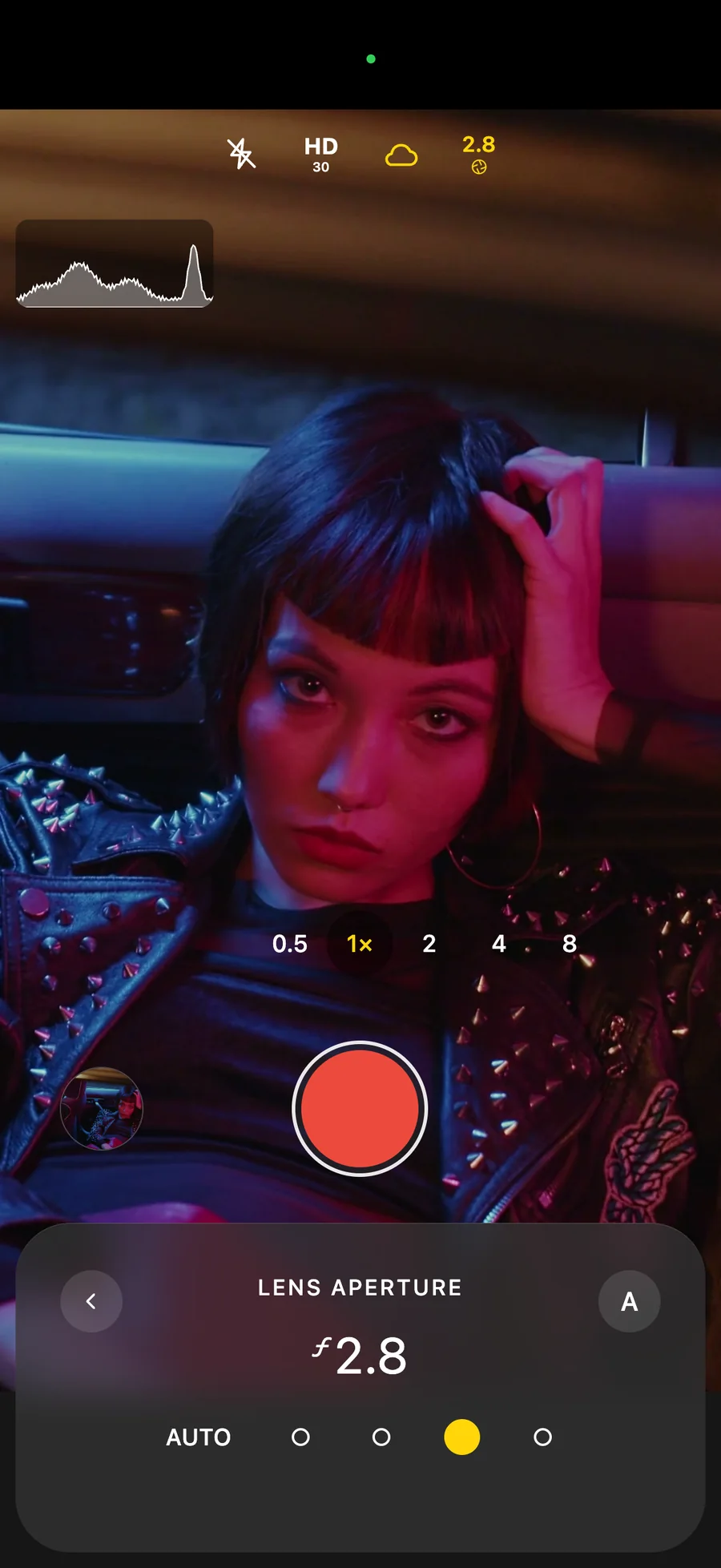
What Apple's Camera already does on iPhone 18 Pro.
From Apple's iPhone User Guide, as of iOS 27.0.
- Manual aperture, shutter speed and white balance on the main camera, in Photo, Video, Cinematic, Slo-mo and Time-Lapse.
- A histogram to check exposure.
- ProRes recording, set up with Pro Video Storage on iPhone 18 Pro, and up to 4K at 120 fps to a compatible external drive.
To open them: Camera › Video › Camera Controls, then Lens Aperture, Shutter Speed or White Balance. Apple's advanced camera tools guide →
The rest of the shoot, in Pro Mode.
Everything below is in MoviePro 10.0.4 on iPhone 18 Pro. Each card links to the manual page that explains it.
Exposure
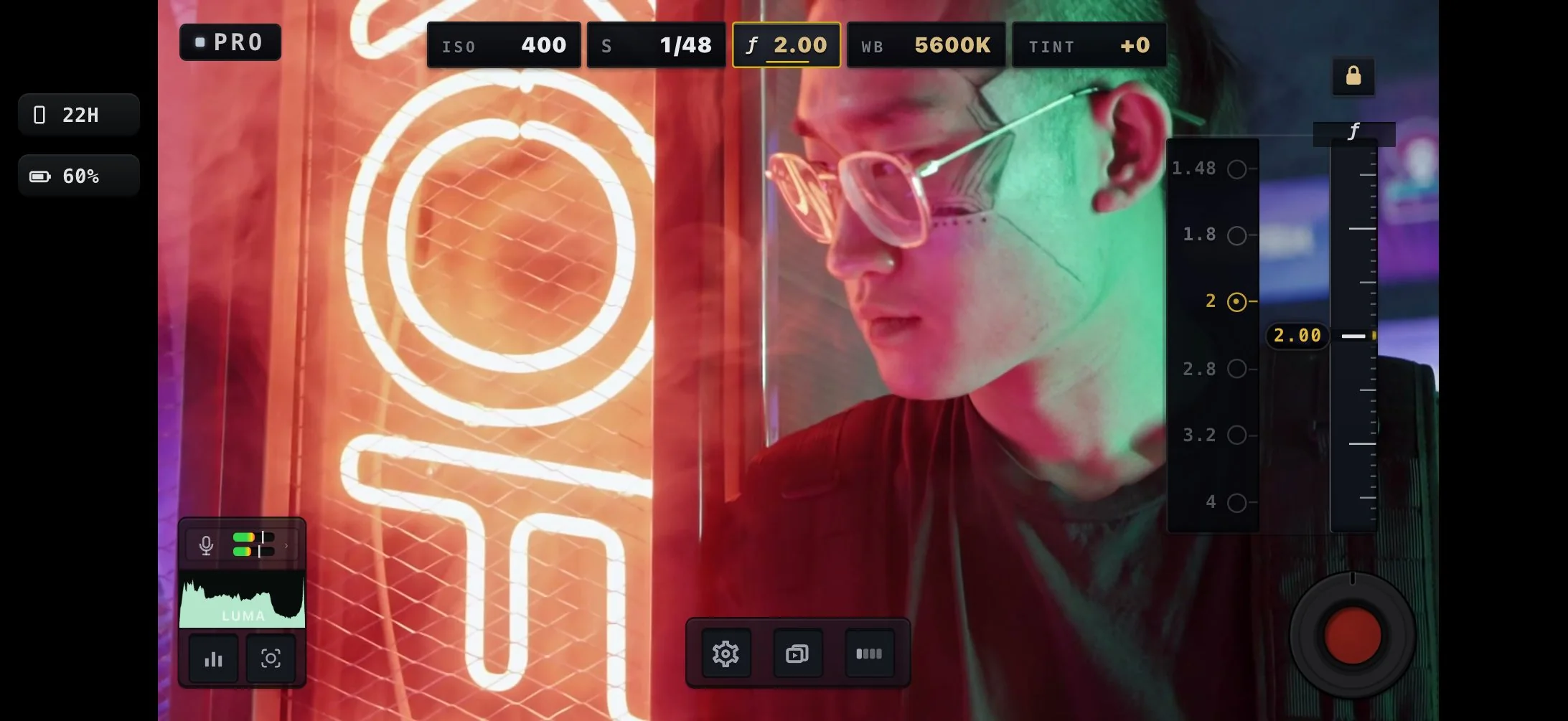
ISO, shutter and aperture set directly on rails, each fixed on its own. The ƒ rail sets the main camera's aperture: drag the scale, or tap a stop from ƒ1.48 to ƒ4. Shutter priority holds the shutter while ISO adjusts automatically, and aperture priority holds the aperture while ISO and shutter adjust automatically. Shutter reads as a speed, such as 1/50, or as an angle, such as 180°.
Repeatable shots
Timed A/B focus pulls and zoom moves (0.5 to 3 seconds), and presets that bring back saved camera settings in one tap.
Scopes and exposure tools
Waveform and RGB parade on IRE scales, a vectorscope for color direction and saturation, and a histogram showing the share of pixels at the very bottom and top of the signal. Zebra, nine-band false color, clipping overlays and focus peaking. Log monitoring converts the preview to Rec.709 or HDR while the file stays Log, with Bake LUT in recording off.
Audio monitoring and metering
The input's name and type on screen; left and right meters from −60 to 0 dBFS with peak hold and a PK readout; headphone monitoring; input gain from −12 to +24 where the microphone allows it; an Assist Line warning when a mic disconnects. AAC at 44.1 or 48 kHz, or uncompressed (24-bit LPCM or 32-bit float) at up to 192 kHz.
Recording
Exact 23.976, 29.97 and 59.94 fps; HEVC, H.264, ProRes and ProRes RAW; Rec.709, HDR, Apple Log and Apple Log 2; anamorphic desqueeze and a 35mm-adapter flip; Long-Record Mode for long takes.
On set
Remote Control from a second iPhone, an iPad or a Mac; an Apple Watch app; start and stop from the volume buttons or a Bluetooth remote; time-of-day or record-run timecode; clean HDMI out.
Next Clip slate and take naming
Set the project, scene and take before you roll. App Library clips are named from the slate, for example Interview_20261001_142530_S03_T004.mov, and Photos copies and shares keep that name; recordings to Files or an SSD keep their written name. Every recording carries the slate in its metadata for editing apps, and the take number goes up after every take that saves.
Take Receipt and clip management
After each take, a receipt with the save result, the settings actually recorded and any warnings. The App Library filters Favorites, Good Takes and Issues; its player steps frame by frame, and INFO shows each take's format, audio, capture settings and slate.
Remote Control that works upright, for vertical creators.
Reels, Shorts and TikTok are shot vertically. Hold the filming iPhone upright and a second iPhone controls it upright too, so you frame a vertical shot on a vertical screen instead of reading a sideways picture.
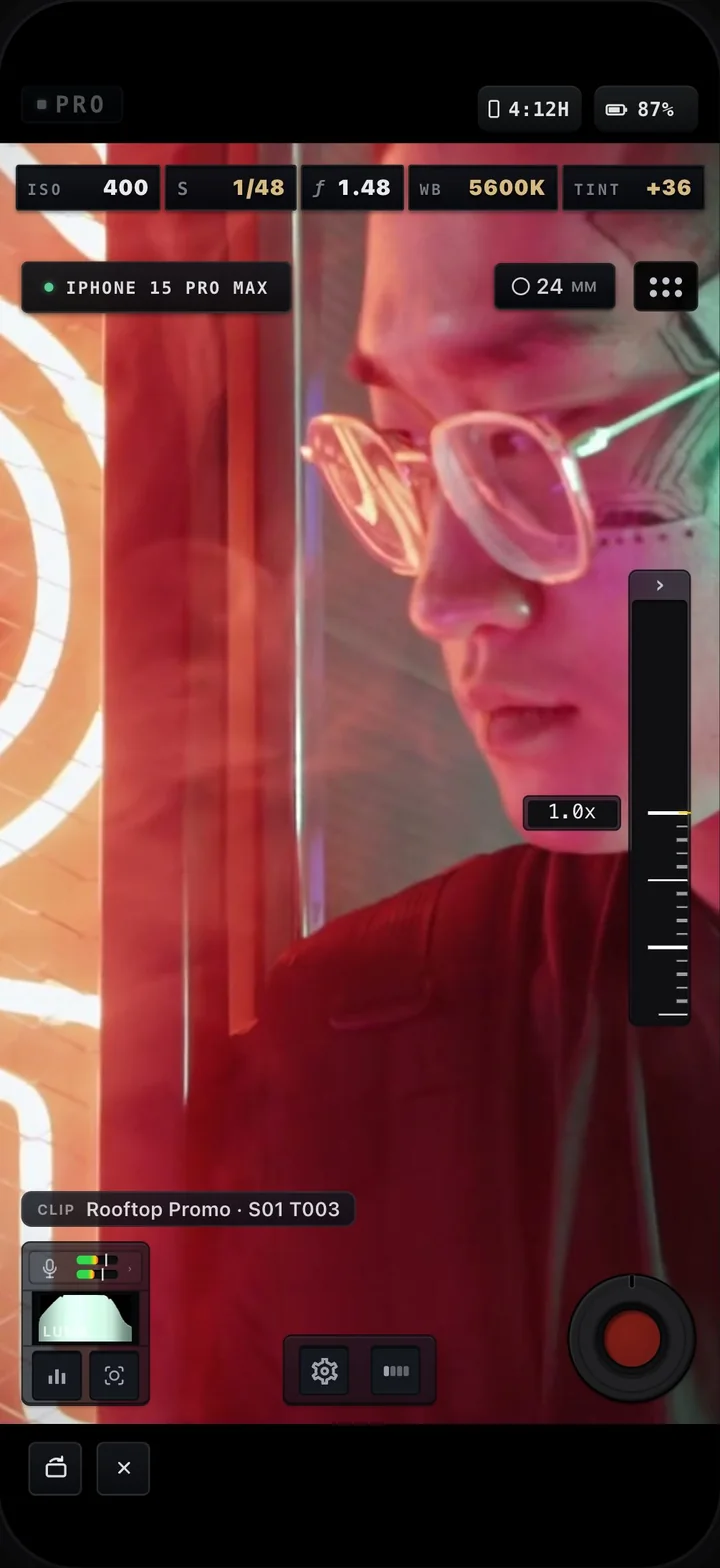
- Matches the camera. On iPhone, the controller takes the filming phone's orientation when it connects. Rotate switches it between upright and landscape whenever you're not recording.
- The full Pro layout, upright. ISO, shutter, ƒ, white balance and tint across the top, the zoom rail, audio meters, the Next Clip slate and Record, placed as in Pro held upright.
- Run the take from the controller. Change exposure, focus and zoom, apply presets, and start and stop recording, while the filming iPhone stays on its tripod, rig or gimbal.
- Files stay on the camera. The filming iPhone records and keeps every take; the controller holds none. Both join the same Wi-Fi or the filming iPhone's Personal Hotspot, with no account.
An iPad controller stays in landscape. Hold the controller upright → · Remote Control
Full control, without a cockpit of buttons over the picture.
The picture comes first
One row of values sits above it. Tap ISO, shutter, ƒ, white balance or focus and that control opens as a rail; tap again or swipe, and it's gone. The whole row hides with a swipe.
One line tells you what matters
The Assist Line reports locks, warnings and problems in plain words.
Each scene carries only what it needs
Auto for run-and-gun, Pro for full control, Dual Capture for two cameras at once in PIP, Split, Two Files or SWITCH.
Apple Camera details from Apple's iPhone User Guide (advanced camera tools; ProRes recording), as of iOS 27.0. MoviePro details follow the 10.0.4 Pro Mode manual. This comparison covers video on iPhone 18 Pro and iPhone 18 Pro Max.