 MoviePro
Record Log. Watch it in Rec.709.
MoviePro records Apple Log and Apple Log 2 on iPhone models that offer them. While you shoot, you can watch the image as Original Log, Rec.709 or Rec.2100 HDR, and the file stays Log. When a job needs the finished look straight from the camera, you can record the conversion instead.
Log on a supported iPhone.
MoviePro checks the device and the current format, and shows only the color modes it can record. Rows it can't record are dimmed, with the reason underneath.
- Color modes
- Apple Log · 10-bit and Apple Log 2 · 10-bit
- Device
- An iPhone that offers Apple Log formats. Apple Log 2 also needs iOS 26 or later.
- Codec
- HEVC or ProRes. Log isn't available with H.264.
- Where
- Settings › Video Format › Color Mode
Three ways to watch Log.
Log is deliberately flat, which makes exposure and color hard to judge by eye. Choose the view under Log Look in the Color Mode settings, or switch it in Pro Mode with the LOG / 709 / HLG control when it's available. With Bake LUT in recording off, the view changes only what you see. Step by step in the manual →
- Original Log · LOG
- The unconverted Log image. The file is Log.
- Rec.709 · 709
- A Rec.709 conversion for a standard display. The file is still Log.
- Rec.2100 HDR · HLG
- An HLG HDR conversion. The file is still Log.
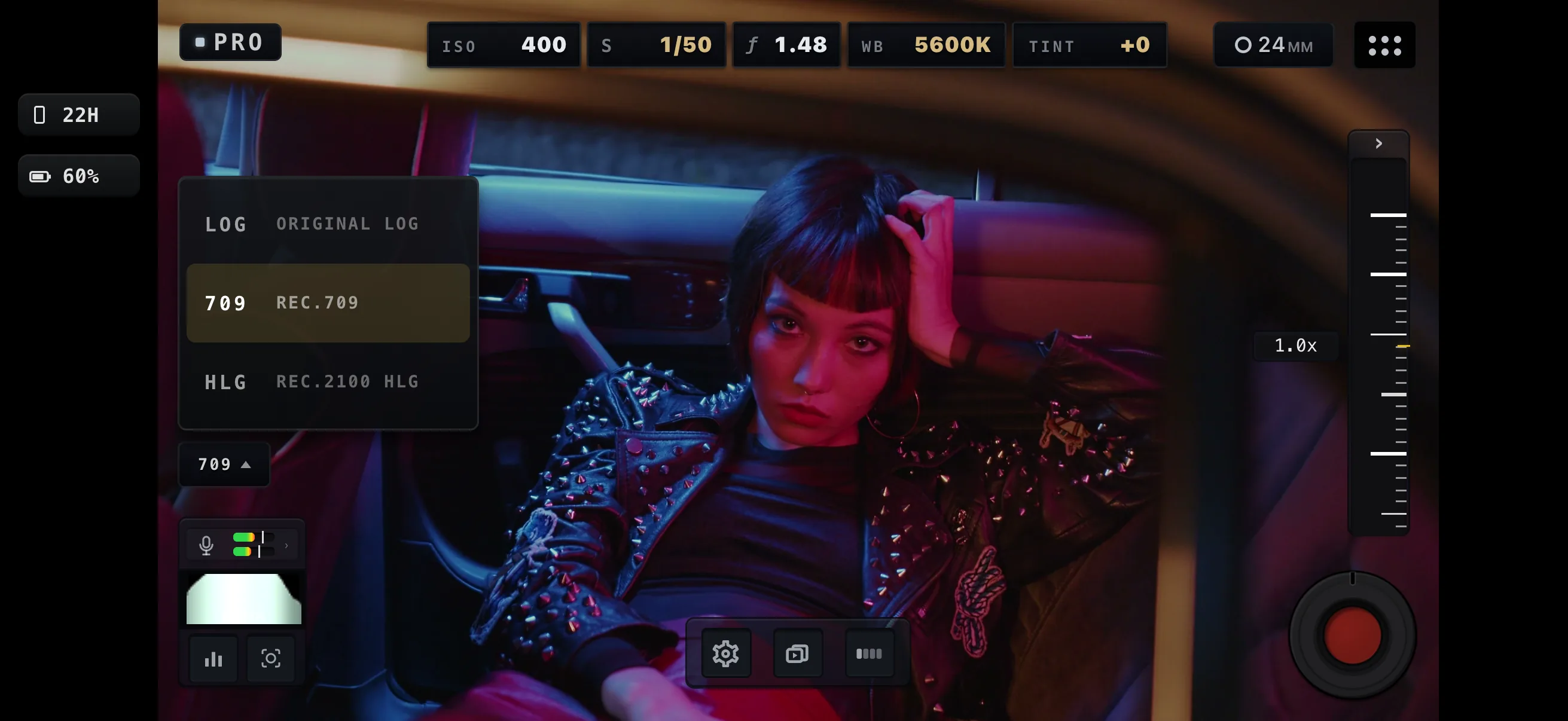

The LOG / 709 / HLG chooser in Pro Mode, with Rec.709 selected. How to use it: Use Log View in the manual.
Or bake the conversion into the file.
When there's no time to grade, turn on Bake LUT in recording under Log Look. The take is recorded in the Rec.709 or Rec.2100 HDR look you chose.
- Works for single-camera takes up to 60 fps.
- Long-Record Mode records Log even with baking on.
- ProRes RAW stays RAW, with no conversion baked.
- Record a short test first, then check the file and the look shown on the Take Receipt.
Bring your own LUT in the edit.
MoviePro doesn't currently import custom LUTs; its Rec.709 and Rec.2100 HDR conversions are built in. To use your own LUT, record Log and apply it in Final Cut Pro, DaVinci Resolve or another editor that handles Apple Log. When you grade, use the color management that matches Apple Log or Apple Log 2.
Set up Log recording.
The manual walks through choosing the color mode, monitoring a conversion and recording one. The FAQ covers the common Log questions.