 MoviePro
18.8
Apple Watch#
The MoviePro app on Apple Watch shows the iPhone's picture and starts and stops its takes.
| Control | What it shows or does | |
|---|---|---|
| 1 | Timer | The take length in minutes and seconds, with hours after the first hour; green while recording. After Stop it holds the finished take's length for 4 seconds. |
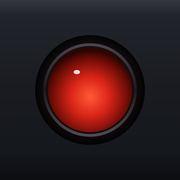
| 2 | Record / Stop | Starts and stops the take on the iPhone. It is the Pro knob when the iPhone is in Pro or Remote and the Auto dome in Auto and Dual Capture; it dims with a spinner while the iPhone answers. |
| 3 | Status | Shown only when something is wrong: IPHONE OFFLINE, or the iPhone's message. |
Record from the Watch
- Open MoviePro on the iPhone, then open MoviePro on the paired Apple Watch.
- Raise your wrist: the iPhone's picture appears. It stops when you lower your wrist.
- Tap Record (2) to start a take on the iPhone; tap it again to stop.
The Watch uses the iPhone's own Record, so the same checks apply. When the iPhone needs a confirmation, such as recording without microphone access, the Watch shows the message with OPEN MOVIEPRO ON THE IPHONE TO CONFIRM. If the iPhone does not confirm a start within 15 seconds, it shows THE IPHONE COULD NOT START RECORDING. CHECK MOVIEPRO AND TRY AGAIN. A stop is given 120 seconds.
There is no Pause on the Watch. On an iPhone used as a Remote controller, the Watch starts and stops the filming iPhone's take; this needs Remote Control unlocked on the controller.