 MoviePro
Function buttons (F1–F3)#
| To | Do this |
|---|---|
| Show the keys | Tap ⋮ on the left edge of the picture. |
| Use a key | Tap it. A key whose job is on lights gold; tap it again to turn the job off. The keys stay out after a tap. |
| Tuck them away | Swipe the keys, or the picture just beside them, toward the edge. |
| Choose the jobs | Settings › Interface Settings › Function Buttons, or tap an empty key. Function buttons (F1–F3) |
Tucked away, the keys fold to ⋮, which turns gold while an assigned job is on, such as a tool, a lock, the torch or stabilization. MoviePro opens with the keys tucked away, and all three are empty until you assign them.
| Job | A tap | Not available |
|---|---|---|
| Zebra, Focus Peaking, False Color, Clipping | Turns that tool on or off. One tool at a time, shared with the tools menu. | |
| Grid | Rule-of-thirds lines on or off. | |
| Full-Screen Scope | Opens or closes the full-screen scope. | |
| LUT | Switches between your last imported look and none. | During a take, with no look to return to, or on a Remote controller. |
| Exposure Lock | Locks automatic exposure; tap again for automatic. | While ISO or shutter is manual. |
| White Balance Lock | Locks automatic white balance; tap again for AWB. | While white balance is manual. |
| Focus Lock | Locks autofocus; tap again for AF. | While focus is manual. |
| Torch | On or off at the last level. | On a camera without a torch. |
| Stabilization | Off, or back to your last tier (Standard if none). | During a take. |
| Lens | Switches to the key's lens, shown on the key (such as 100MM); tap again to go back. | During a take, or for a lens this phone does not have. |
| Audio Monitoring | Headphone monitoring on or off. | Without headphones, or on a Remote controller. |
| Hide Controls | Hides every control; tap the picture to bring them back. |
A dimmed key cannot be used now. The keys hide while the Focus rail, the zoom A/B panel, Presets, More or another menu is open, and in landscape while the tools menu or the scope view is open; they stay during a take. On a Remote controller they run the controller's own jobs.
Assign the jobs
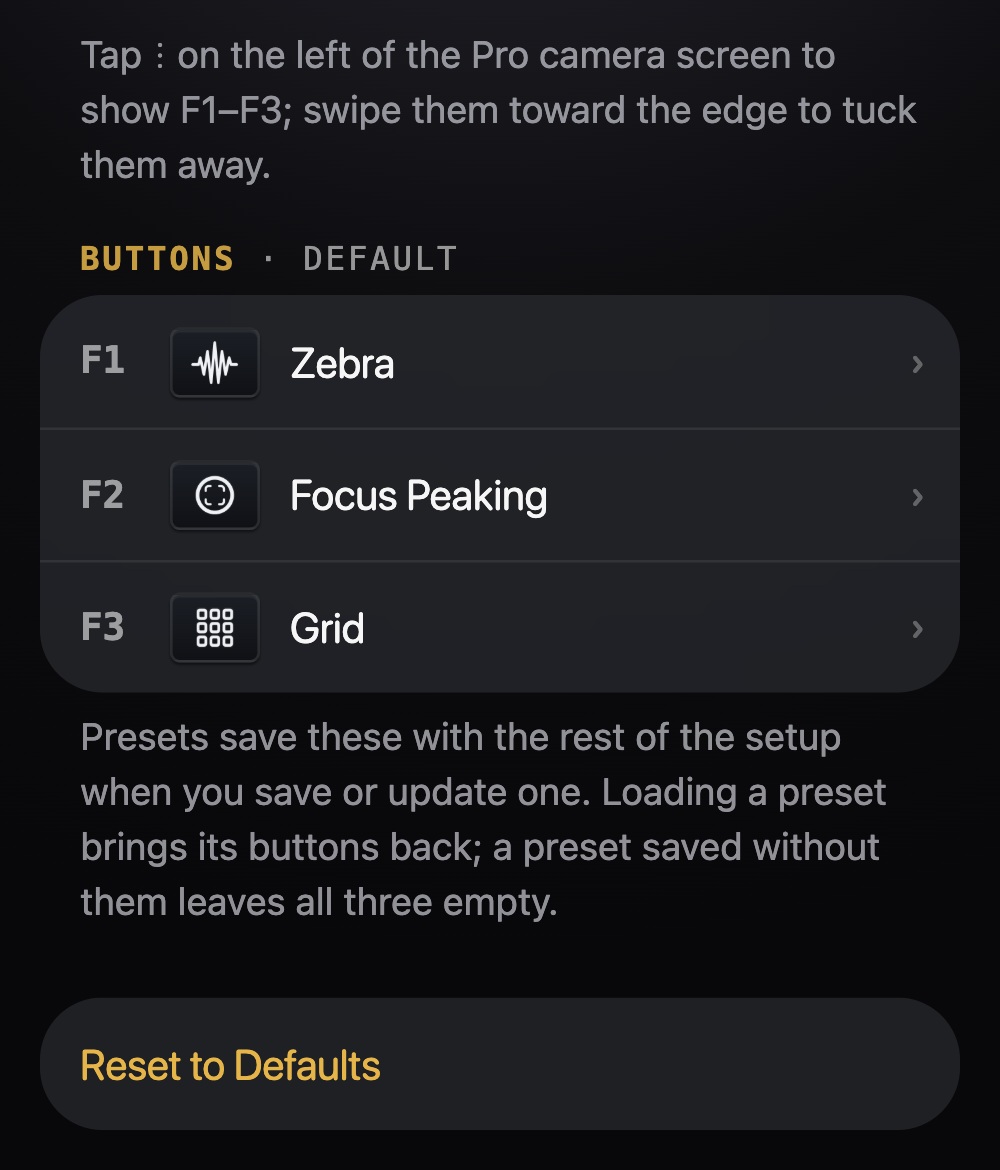
- Open Settings › Interface Settings › Function Buttons, or tap an empty key on the camera screen to open its list.
- Tap F1, F2 or F3 and choose a job; the check mark moves to it. For Lens, choose the lens.
- Return to the camera. Reset to Defaults empties all three keys.
A job can be on one key only: a job already on another key is greyed, with that key's name. Change that key first.
Presets
A preset saves the three keys when you save or update it, and loading it brings them back; a preset saved without them leaves all three empty. While a loaded preset's keys are in use, the page header reads BUTTONS · FROM and the preset's name. Changes apply at once; update the preset to keep them. What a preset saves